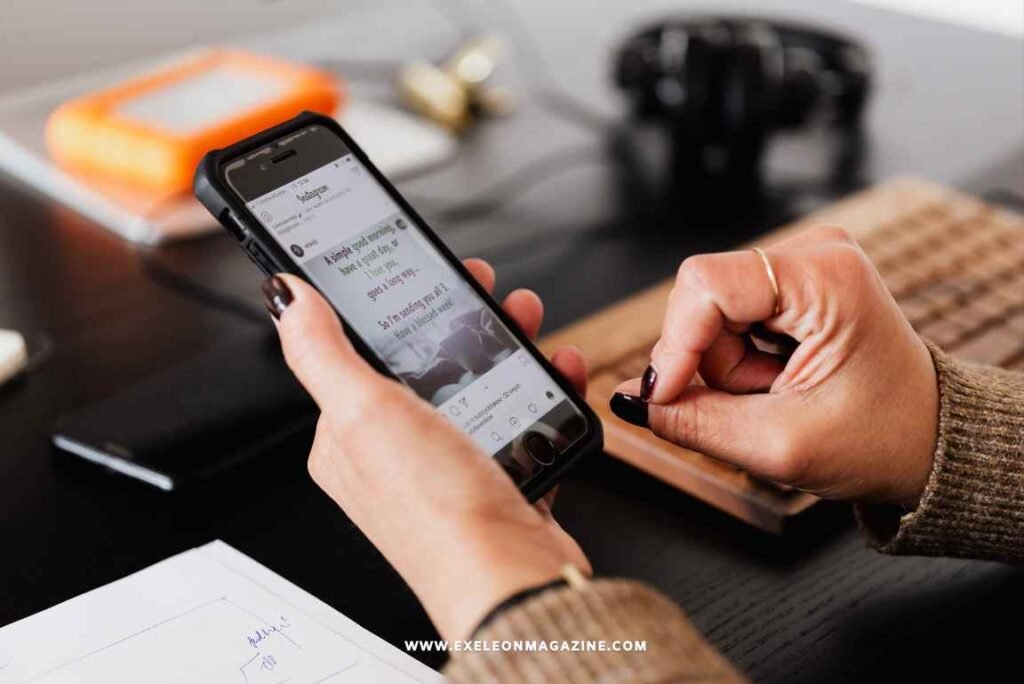
According to a January 2024 Pew Research Center survey, about four in ten U.S. adults report being online almost constantly, and smartphone ownership among American adults has reached 90%. That level of connectivity sounds productive on paper, but the reality for most people is closer to a stream of interruptions than a tool that moves the day forward.
A 2026 survey by Reviews.org found Americans check their phones an average of 186 times a day, roughly once every five minutes while awake. That’s not how to make your phone work for you. That’s the phone running the show.
The good news: with a few deliberate changes, the same device that fragments attention and drains time can become a genuinely useful tool. Here are five ways to make that shift.
Way 1: Cut Notification Volume to What You’d Actually Act On
The single fastest way to reclaim focus is to audit which apps can interrupt you. Most people grant notification permission by default at install time and never revisit it. Researchers at the University of California, Irvine, have found that it takes an average of 23 minutes to fully refocus after an interruption. Every non-critical ping from an app costs far more than the few seconds it takes to dismiss it.
Which Notifications Actually Deserve a Spot
A useful filter: only apps that require a timely response should send alerts. The rest can be checked on your schedule.
- Keep on: calls, texts from real contacts, calendar reminders, navigation, banking alerts
- Turn off: social media likes and comments, promotional emails, news headlines, game updates, app review requests
- Batch into summaries: apps like Gmail and Slack support scheduled digest notifications, so you get one alert rather than a dozen
Go to Settings on iOS or Android and review each app individually. It takes about ten minutes, and the result is immediate. The goal is a phone that speaks up when something needs your attention, not one that narrates everything happening inside every app at all times.
Way 2: How to Stop Spam Calls Before They Break Your Concentration
The phone call problem has gotten measurably worse. According to U.S. PIRG Education Fund’s 2025 robocall report, the monthly average of scam and telemarketing calls reached 2.56 billion in 2025, a 20% increase year over year. And 31% of American adults say they get at least one scam phone call a day, according to Pew Research Center data cited in the same report.
Trying to block all spam calls entirely using only a carrier’s default settings rarely works, because callers cycle through numbers faster than blocklists can track them. A layered approach works better.
Building a Layered Spam Defense
Start with what your carrier already offers:
- Enable your carrier’s built-in spam filter. AT&T ActiveArmor, T-Mobile Scam Shield, and Verizon Call Filter all offer free basic spam screening. Enable them through your carrier app or account settings.
- Turn on Silence Unknown Callers. On iPhone, this is under Settings > Phone. On Android, look for “Filter spam calls” in the Phone app settings. Calls from numbers not in your contacts go straight to voicemail; legitimate callers leave a message.
- Add a third-party call-screening app. Such apps maintain large databases of known spam numbers and flag or block them in real time. These catch a significant portion of what carrier filters miss.
- Register with the National Do Not Call Registry at donotcall.gov. This won’t stop illegal robocallers, but it removes your number from compliant telemarketers’ lists and creates legal accountability.
- Report spam calls to the FTC at reportfraud.ftc.gov. The data is used in enforcement investigations and contributes to carrier-level blocklists over time.
The combination of carrier screening plus a third-party app plus Silence Unknown Callers is the closest practical approach to an attempt to block all spam calls. No method catches everything, but this stack dramatically reduces daily interruptions.
Why Your Phone’s Built-In Focus Modes Are Worth Using
Focus modes and Do Not Disturb are underused features that genuinely change how to make your phone work for you rather than against you. Both iOS and Android support customizable focus states that restrict which apps and contacts can reach you during specific activities or times of day.
The key distinction from simply silencing the phone: Focus modes are scheduled and context-aware. A Work focus might allow calls from colleagues and calendar alerts while blocking everything else. A Sleep focus can suppress all notifications from 10 p.m. onward. The setup takes 15 minutes; the benefit compounds daily.
A few configurations worth setting up:
- Sleep mode: activates at your usual bedtime, suppresses all alerts, restores at your wake time
- Work or Deep Focus: allows only contacts and calendar; suppresses social media, email, and all entertainment apps
- Personal mode: the inverse of Work, active after hours, silences work email and messaging apps
On iPhone, go to Settings > Focus. On Android, look under Digital Wellbeing or, on Samsung, under Modes and Routines. The feature is built in and free; most people just never turn it on.
How Automation Makes Routine Phone Tasks Run Themselves
The phrase “make your phone work for you” applies literally once automation enters the picture. Both iOS (Shortcuts) and Android (Tasker, or the built-in Routines on Samsung) allow the phone to perform tasks based on time, location, or context without any input from the user.
Useful Automations That Actually Stick
| Automation | Trigger | Benefit |
| Enable DND | Location: work desk/time: 9 AM | Blocks interruptions during deep work |
| Turn on low-power mode | Battery drops below 20% | Extends charge without manual toggling |
| Text auto-reply when driving | Car Bluetooth connected | Prevents distracted driving, manages expectations |
| Mute media volume | Time: 10 PM | Prevents late notifications from waking you |
| Launch Spotify playlist | Morning alarm dismissed | Removes friction from morning routine |
| Enable Wi-Fi | Arrive home location | Switches from mobile data automatically |
Start with one or two automations, not ten. The most common reason people abandon automation is setup complexity; a single automation that runs flawlessly builds confidence for adding more.
On iPhone, open the Shortcuts app and select Automation. On Android (Samsung), go to Settings > Modes and Routines. Third-party apps give the most granular control on Android if the built-in options feel limited.
What Smarter App Organization Does for Your Daily Routine
A disorganized home screen trains the brain to browse rather than act. When apps are grouped by function, and the most-used ones are within reach, the phone starts behaving more like a tool and less like a slot machine. This is a low-effort change with a disproportionate effect on how many times you pick the device up for no particular reason.
Practical Home Screen Architecture
The front page of the home screen should contain only:
- Action apps: camera, maps, phone, messaging — things triggered by a specific need
- Daily utility apps: calendar, notes, weather, timer
- Nothing entertainment-related: social media, streaming apps, and games belong on a second screen or in a folder, adding just enough friction to interrupt passive browsing
This structure doesn’t prevent using social media. It removes the automatic, reflexive opening that happens when the screen lights up, and the icon is right there. That small break in the habit loop reduces passive screen time without requiring willpower.
A useful complement: use the Screen Time (iOS) or Digital Wellbeing (Android) dashboards to set daily time limits on apps you consistently overuse. The limit doesn’t lock the app permanently; it just creates a pause that makes the choice conscious rather than automatic.
Five Changes, Compounding Results
Knowing how to make your phone work for you comes down to reversing the default settings most devices ship with. Notifications are on by default; turn most of them off. Spam calls come through unfiltered by default; layer up a defense. Focus modes exist but are not activated by default; schedule them. Automation tools ship with every phone but rarely get used; start with one. Home screens fill up with every installed app; edit them down to what earns its place.
Each change is small. Together, they shift the phone from a source of fragmented attention into a tool that runs on your schedule, surfaces what you need, and mostly stays quiet the rest of the time.
FAQ
Does turning off most notifications affect whether people can reach me in an emergency?
Not if the setup is done correctly. Both iOS and Android allow “emergency bypass” settings that let specific contacts always ring through, even during Do Not Disturb or Focus modes. Set this for immediate family or anyone whose calls you’d want to receive at any hour. Emergency alerts from government services (AMBER alerts, weather warnings) are also exempt from most Focus settings by default, so those still reach you regardless.
Will a spam-call blocking app read my call history or contacts?
Most do require access to call logs and sometimes contacts to function, since matching incoming numbers against a database requires knowing what number is calling. Before installing any app, check its privacy policy and whether it uploads contact data to external servers.
Is there a way to make the phone’s battery last longer without buying a new one?
Several settings have a meaningful impact. Reducing screen brightness, enabling adaptive battery mode, limiting background app refresh, and keeping Wi-Fi on when indoors (Wi-Fi uses less power than mobile data for the same tasks) all extend run time. Automating low-power mode at 20% battery ensures the switch happens consistently. iOS also has an Optimized Battery Charging setting that slows overnight charging to reduce long-term battery degradation.
How does Silence Unknown Callers affect two-factor authentication (2FA) SMS codes?
It doesn’t. SMS messages arrive in the messages app regardless of call-silencing settings. Silence Unknown Callers only affects voice calls from numbers not in your contacts; it has no effect on text messages, so verification codes come through normally. The only scenario where this matters is if a service sends a voice call with a verification code rather than a text, which is increasingly rare.
Does adding a contact to multiple groups or labels affect storage or performance?
No. Labels and groups are metadata, not copies of the contact record. A contact assigned to three groups still exists as a single entry in the database. The only practical limit is manageability: too many labels on a single contact makes the system harder to use, not harder for the app to run. Stick to two or three labels per contact for the sake of your own clarity.